
Documentation menu
Pi-hole without a Raspberry Pi: DNS blocking on one Windows PC
Pi-hole is a well-known way to block ads and trackers for a whole home network. It needs a small computer that is always on, such as a Raspberry Pi, and a change in the router. This guide is for people who want the same kind of blocking on one Windows PC, without extra hardware.
What Pi-hole does
Before a device connects to a server such as ads.example.com, it asks a DNS server for the
server's address. Pi-hole is a DNS server for your home. It answers the lookups of every device, and
refuses the names on its block lists. The ad or the tracking request then never leaves the device.
To use it, you install Pi-hole on a Linux computer that runs all day, and you change the router so that every device sends its lookups to that computer.
What you get:
- It covers every device on the network, including phones, TVs and consoles, without installing anything on them.
- A dashboard shows what was looked up and blocked, for each device.
- It is free and open source.
What it asks of you:
- A computer that is always on. When it is off or fails, no device in the home can look up names until you change the router back.
- Access to the router's settings. In a shared flat, a dormitory or an office you usually do not have it.
- It works only at home. A laptop in a café, a hotel or on mobile data gets no blocking.
- A device that uses its own encrypted DNS goes around it.
If you run a home network with many devices and can change the router, Pi-hole is a good choice. The rest of this guide is for the other cases.
When blocking on one PC is the better fit
- You cannot or do not want to change the router.
- Your PC is a laptop that leaves home.
- You have no spare device to run all day.
- You only care about this PC.
Blocking on the PC protects only that PC. Phones and TVs stay as they are.
Choice 1: run Pi-hole on the Windows PC itself
Pi-hole does not run on Windows directly. It can run inside Docker Desktop or the Windows Subsystem for Linux on the same PC. You then set the PC's DNS server to itself in Settings › Network & internet.
What to know:
- You keep Pi-hole's dashboard and lists.
- You install and maintain a Linux environment for one small task, and it must start before anything on the PC can look up names.
- When the container or the Linux environment stops, the PC cannot open any website until you change the DNS setting back.
- You set the DNS server for each network connection, and again after some VPN apps change it.
This fits people who already use Docker or Linux on their PC. For everyone else it is a lot of moving parts.
Choice 2: a filtering DNS service or the hosts file
Both need no extra software. A filtering DNS service is a Pi-hole that someone else runs for you, and the hosts file is a block list built into Windows. How to block ads and trackers in every app on Windows 11 explains both, with their steps and limits.
Choice 3: NetworkTuna's domain blocker
NetworkTuna is a Windows app that detects suspicious network activity around your PC and blocks unwanted connections. Its Domain blocker does on one PC what Pi-hole does for a network: it checks the DNS lookups of every app against block lists. It is not a DNS server. It checks the lookups on their way out, so the PC keeps the DNS server it already uses.
- Install NetworkTuna and choose Domain blocker in the sidebar.
- On the Settings tab, turn on Block domains on your lists.
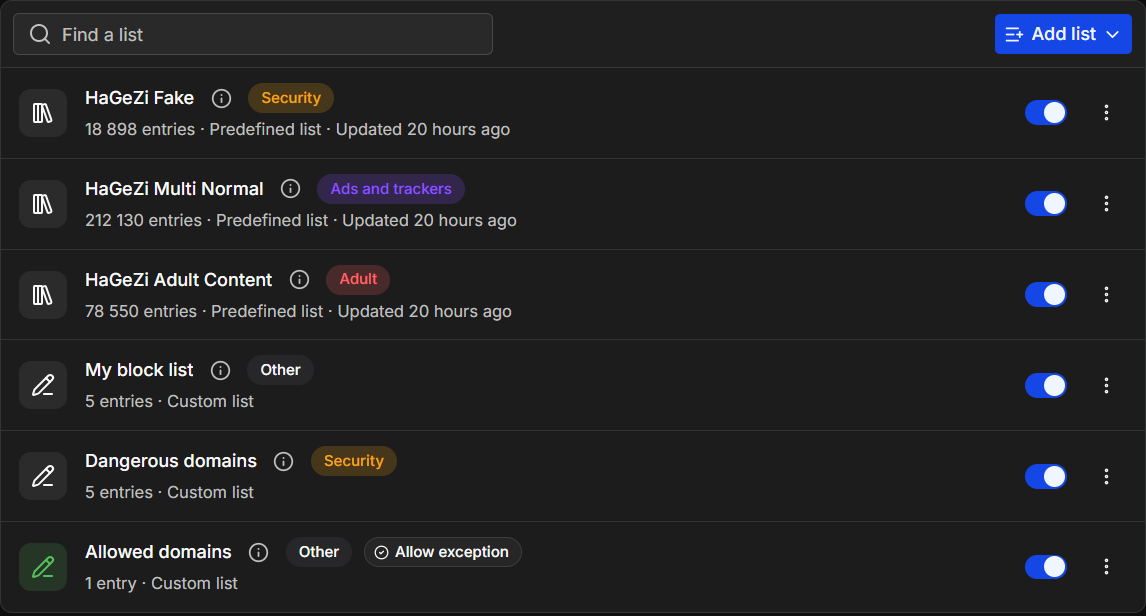
- Click Manage lists, then Add list › Predefined list, and add one list from the Ads and trackers tab.
How it compares with Pi-hole:
- Nothing to keep running besides the PC. There is no second device and no Linux environment.
- No DNS setting to change. Windows keeps its DNS server, and so does your router. When you turn blocking off, everything works as before.
- It travels with the laptop. The lists apply on every network the PC joins.
- It is designed to work alongside VPNs. Lookups keep the DNS server and route the VPN chose, and NetworkTuna checks them before they leave.
- You can bring your lists. Besides the predefined lists, Import a file reads plain lists of domains, hosts files and Adblock-style lists.
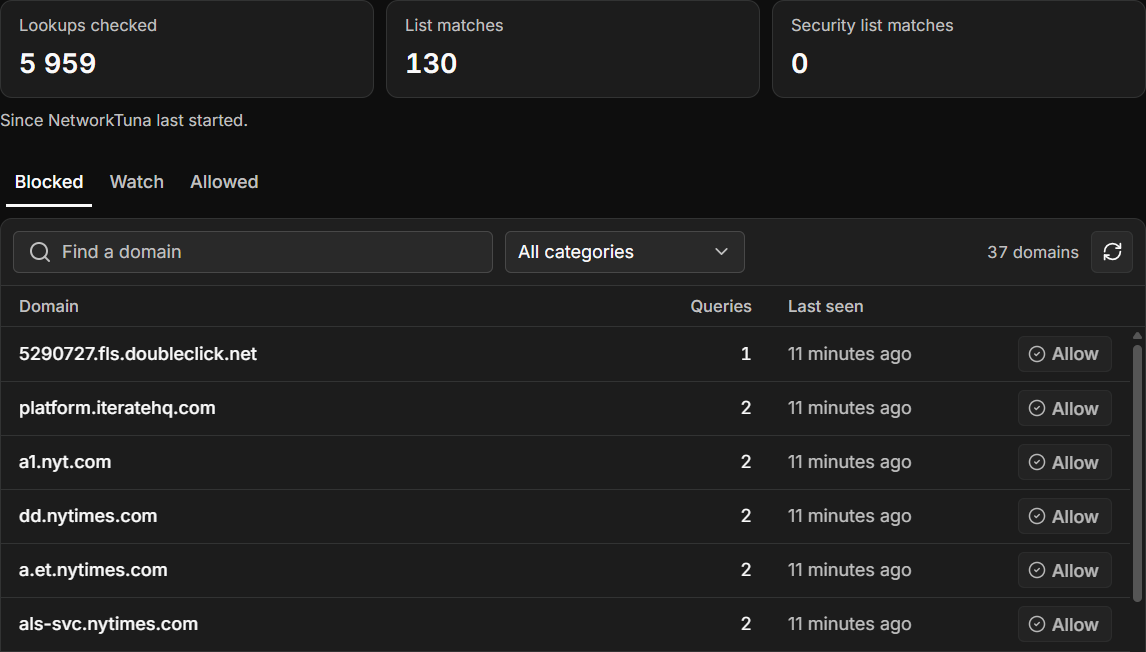
- You see what was blocked. The Status tab lists the blocked domains of the last 7 days. Allow next to a domain adds an exception.
What it cannot do:
- It protects this PC only. For phones and TVs you still need Pi-hole or a similar solution on the network.
- Pi-hole shows which device made a lookup. NetworkTuna does not know which app made it.
- It does not see lookups that an app encrypts itself, such as a browser with secure DNS turned on. Pi-hole has the same limit.
- Like every blocker that works by name, it cannot remove ads that come from the same server as the content, such as video ads on YouTube.
- Domain blocking needs Windows 10 version 2004 or later.
NetworkTuna has a 14-day trial in which every feature works. After that it is a one-time payment, with no subscription.
Which one to choose
| Pi-hole on a separate device | Pi-hole on the PC (Docker or WSL) | NetworkTuna | |
|---|---|---|---|
| Covers | Every device at home | This PC | This PC |
| Extra hardware | Yes, always on | No | No |
| Router change | Yes | No | No |
| Windows DNS setting changed | No | Yes | No |
| Works away from home | No | Yes | Yes |
| Shows who made a lookup | The device | Only this PC | Not the app |
| Cost | Free, plus the device | Free | One-time payment, 14-day trial |
- Choose Pi-hole on a separate device for a home with many devices, when you can change the router.
- Choose Pi-hole on the PC when you already run Docker or Linux there and like its dashboard.
- Choose NetworkTuna when you want blocking on one Windows PC with nothing else to set up, and also want to know when something on your network probes your PC.
The two also work together: Pi-hole at home for every device, and NetworkTuna on the laptop for the networks where Pi-hole is not there.