
Documentation menu
App firewall
NetworkTuna's app firewall decides which apps on this PC can use the network. It works alongside Microsoft Defender Firewall or your preferred Windows firewall and does not change that firewall's rules. It is an addition, not a replacement.
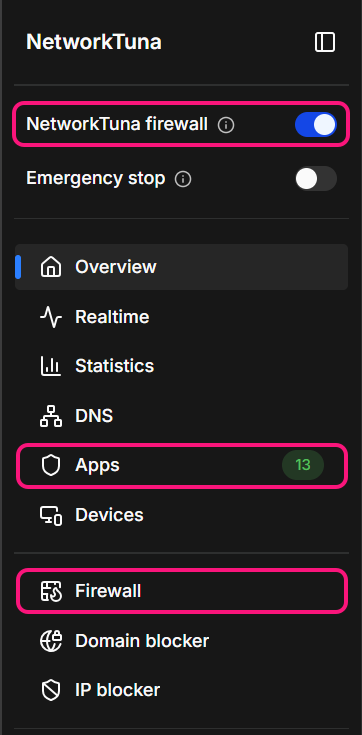
You find the app firewall in three places in the sidebar of the NetworkTuna window:
- The NetworkTuna firewall switch at the top turns it on or off.
- Apps opens the Apps page, which lists every app with its firewall setting and the apps that are waiting for your decision.
- Firewall opens the firewall settings: the firewall profiles and what happens to apps you have not decided about yet.
To block websites or IP addresses for every app, use the Domain blocker and the IP blocker instead.
Why an app firewall
Microsoft Defender Firewall lets every app on your PC connect out by default. Any app can reach the Internet and your local network without asking you. Incoming connections are blocked by default, but a program installed with administrator rights, as most installers are, can add its own firewall rules and accept incoming connections too. A new app can start to communicate as soon as it is installed, and you may never notice.
NetworkTuna's app firewall notices every app the first time it uses the network, for incoming and outgoing connections alike, and lets you decide which apps may connect. New apps appear on the Apps page. What happens to an app you have not decided about yet is the default firewall action: Ask me, Allow or Block. It is Ask me by default, and then:
- An app with a valid digital signature is allowed, and NetworkTuna saves Allow for it. You can still see and change the setting on the Apps page.
- An unsigned app, or an app whose signature is invalid or could not be checked, is stopped. NetworkTuna holds its connection and asks you whether it may connect. While the NetworkTuna app is not running, the connection is allowed once by default and the app waits for your decision. See When NetworkTuna can't ask you.
To be asked about more apps, change Automatically allow signed apps on the Firewall page: allow only apps signed by Microsoft, or have NetworkTuna ask about every new app. To block every app you have not allowed, choose Block as the default firewall action.
Firewall settings
Every app has one firewall setting, which applies to both incoming and outgoing connections:
| Setting | What happens |
|---|---|
| Not set | You have not chosen yet. The app follows the default firewall action, and its row shows a gray icon such as Ask by default. |
| Allow | The app can connect. |
| Ask | NetworkTuna asks you whenever the app makes a new connection. |
| Block | The app cannot connect. |
You see and change these settings mostly on the Apps page. Every row there shows the app's current setting at its right end. Click it and choose Allow, Ask or Block.

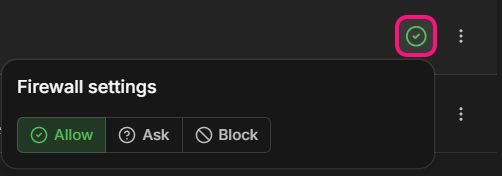
You can also change the setting on the Realtime page, in the app details window, or when NetworkTuna asks you.

The settings belong to the active firewall profile. Each profile keeps its own, so an app can be allowed in one profile and blocked in another.
Apps without a setting
When an app without a setting tries to connect, the default firewall action decides:
- Allow: the app can connect.
- Ask me: NetworkTuna checks the app's signature. Depending on Automatically allow signed apps, it allows a signed app on its own. Otherwise, it holds the connection and asks you.
- Block: NetworkTuna allows a signed app on its own, if Automatically allow signed apps lets it. Otherwise, it blocks the app without asking.
The default firewall action saves no setting for the app. Only automatic approval of a signed app saves Allow.
Temporary access
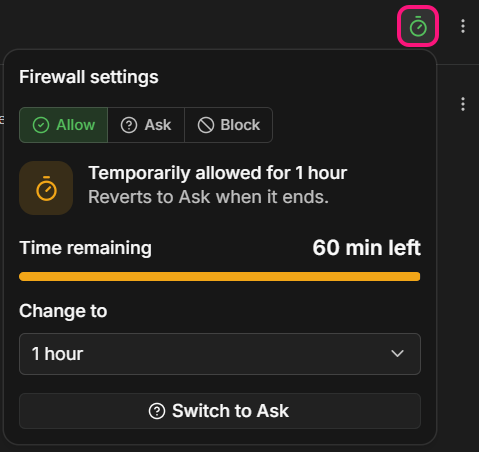
Allow for allows an app for a limited time: 5, 15 or 30 minutes, 1, 3, 6 or 12 hours, or until the app exits. When the time is up, the app's saved setting applies again. You find Allow for in the app actions on the Apps page, and behind the arrow next to Allow in the app details window and in connection requests.
Temporary access ends early when the NetworkTuna service restarts, when the PC restarts, when the app firewall is turned off and on again, or when you switch, add or delete a firewall profile or reset its rules.
On the Apps page, an app with temporary access shows a timer instead of its firewall icon. Click the timer to see how much time is left, change the duration or switch the app to Ask.
What the app firewall does not control
- Connections within this PC (loopback) are never blocked and never cause a prompt.
- Traffic of Windows itself (System) cannot have its own firewall setting.
Turning the app firewall off
Use the NetworkTuna firewall switch at the top of the sidebar, or Enable NetworkTuna firewall on the Firewall page.
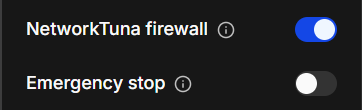
While the app firewall is off, NetworkTuna does not apply app firewall settings. Your saved settings are restored when you turn it back on.
Turning the app firewall off does not stop security monitoring.
Emergency stop
Emergency stop, directly below the NetworkTuna firewall switch in the sidebar, blocks all network traffic of this PC, including apps that are allowed. It stays on after a restart until you resume traffic.
You also find Emergency stop in the menu of the NetworkTuna icon in the notification area of the taskbar. Choosing it opens NetworkTuna to confirm that you want to stop all network traffic. Choosing it again resumes traffic right away.